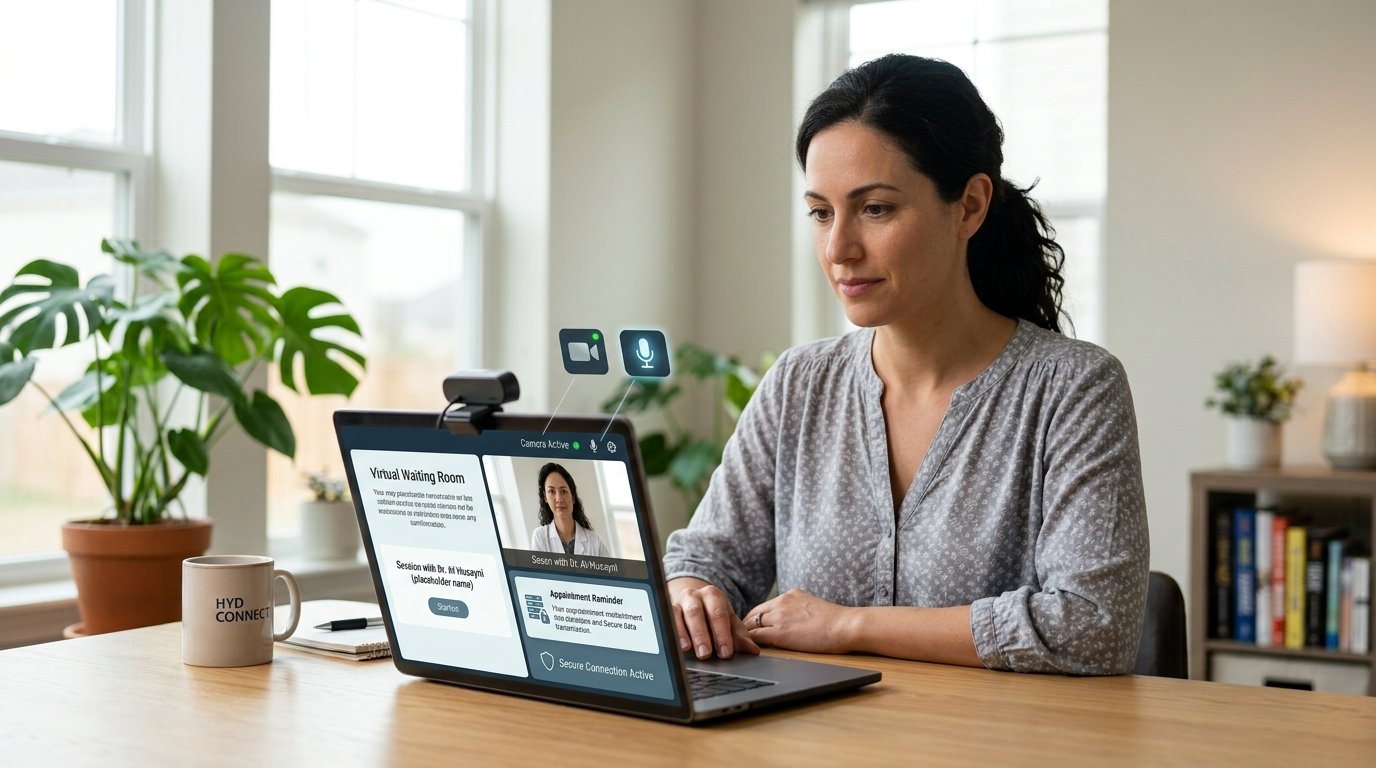
If you are looking for the LifeStance login, you are usually trying to reach your LifeStance Health patient portal, check an upcoming appointment, review account information, communicate with your care team, or get ready for a virtual visit.
LifeStance Health provides mental health services through supported psychiatrists, psychologists, therapists, and other clinicians. Its patient portal gives existing patients access to several account and care-management features, including appointments, messages, documents, billing information, and other patient resources.
The login process can vary depending on your state and the LifeStance-supported practice handling your care. The safest approach is to begin from the official LifeStance website and select the appropriate patient portal for your location rather than relying on an old bookmark or an unfamiliar login page.
This guide explains how the LifeStance Health login works, what you can do after signing in, how to recover access, and what to do if the portal or telehealth visit is not working.

What Is the LifeStance Login?
The LifeStance login provides patients with access to the LifeStance Health patient portal. It is designed for existing patients who need to manage parts of their care online.
The LifeStance patient portal can provide access to features such as
- Upcoming and previous appointments
- Secure messages with the LifeStance care team
- Patient forms
- Patient records
- Online bill payment
- Insurance card and document uploads
- Account information
- Telehealth appointment access
LifeStance’s official patient portal information specifically states that patients can use the portal to access health record information, communicate with their care team, and upload insurance cards, photo identification, and other documents.
For a broader explanation of how patient portals work in healthcare, see the Wikipedia overview of patient portals.
How to Complete a LifeStance Login
The simplest way to reach the correct LifeStance patient portal is through the official LifeStance website.
Step 1 Find the Patient Portal
Go to the LifeStance Health website and locate the patient portal section.
LifeStance currently organizes its patient portal access by state and, in some states, by region or supported practice. The official portal page lists available states and regional options.
Internal link: LifeStance Patient Portal
Step 2 Select Your State
Choose the state where your LifeStance-supported provider is located.
Some states have additional regional selections. This matters because LifeStance does not use one universal patient portal destination for every patient. The official portal page currently displays state and regional choices before sending patients to the relevant login system.
Step 3 Enter Your Login Information
After selecting the appropriate portal, enter the requested account credentials.
Depending on the portal you are using, this can include your email address or username and password.
Do not share your password with another person, and avoid entering healthcare login information on websites reached through advertisements, unsolicited messages, or unfamiliar domains.
Step 4 Open Your Patient Dashboard
After a successful LifeStance patient login, you can access the functions available to your account.
LifeStance’s patient portal guide identifies appointments, messaging, online bill payment, patient forms, patient records, and document or insurance-card uploads as portal functions.
How to Access the LifeStance Patient Portal for the First Time
A new patient may not immediately have an active portal account.
LifeStance says that for an initial login, patients should look for the email sent by the Intake Team when the appointment was scheduled. That message provides the information needed to begin the patient portal registration and login process.
This means the LifeStance new patient login process can be different from the process used by a returning patient.
If you have recently scheduled your first appointment, check the email address you provided during intake. Look in your inbox and spam or junk folder for the registration message.
If you still cannot find it, contacting your LifeStance office or patient support channel is preferable to creating multiple accounts with different email addresses.
LifeStance Patient Portal Registration
Patients who have not previously activated their account may need to complete LifeStance patient portal registration before using the portal.
The registration process establishes your portal account and allows you to use the available patient features.
LifeStance documentation also describes account activation invitations and password-reset processes for portal accounts.
What New Patients Should Have Ready
Before registering, keep the following information available if requested
- The email address used when scheduling
- Appointment information
- Basic identifying information requested by the portal
- Insurance information when needed
- Any registration email sent by LifeStance
Avoid creating duplicate accounts unless LifeStance specifically instructs you to do so.
What Can You Do After a LifeStance Account Login?
The LifeStance patient account is more than a page for checking appointments.
View and Manage Appointments
Your patient dashboard can provide access to upcoming and historical appointment information.
LifeStance’s patient portal documentation identifies appointment viewing as one of the portal’s core functions.
If you need to make a new appointment rather than manage an existing one, LifeStance also has an online booking system for new and returning patients. Its current booking page distinguishes between new patients and returning patients.
Internal link: LifeStance appointment booking
Send Messages to Your Care Team
The LifeStance portal can allow patients to send and receive messages with their care team.
This can be useful for appropriate non-emergency communication related to appointments, care coordination, or other matters supported by the practice.
A patient portal should not be treated as an emergency communication channel. For an immediate medical or psychiatric emergency, use appropriate emergency services or urgent care resources.
Complete Patient Forms
LifeStance identifies patient forms as another feature available through the portal.
Completing forms before an appointment can help ensure that the information requested by the practice is available before your visit.
Upload Insurance Information
The patient portal can be used to upload documents such as insurance cards.
LifeStance’s instructions explain that patients can log into the portal, open the profile area, choose the document-upload option, select the relevant patient, and upload an insurance card.
Review Patient Records
The portal guide also identifies access to patient records as one of the available functions.
The exact information available can depend on your account, practice, and applicable healthcare requirements.
Make a Payment
The LifeStance billing login can be relevant when you need to review or pay an outstanding balance.
LifeStance says patients can use the patient portal to make payments and review outstanding balances. Its billing information also describes state-specific payment workflows.
Internal link: LifeStance billing and insurance help
LifeStance Login for Telehealth Appointments
A common reason patients search for LifeStance telehealth login is an upcoming virtual therapy or psychiatry appointment.
However, joining a telehealth appointment is not always the same thing as logging into the patient portal.
LifeStance currently provides telehealth access through appointment links and virtual waiting rooms. Its instructions explain that patients can enter a scheduled appointment through a telehealth invitation, a provider-supplied link, or their patient portal account.
Internal link: LifeStance Telehealth Waiting Room
How to Join a LifeStance Virtual Appointment
Before your appointment
- Find your appointment reminder or telehealth invitation.
- Use the provided appointment link or access the appointment through the patient portal when available.
- Be in a private location.
- Use a compatible computer, tablet, or smartphone.
- Check your camera and microphone.
- Join the waiting room before your scheduled appointment.
LifeStance recommends preparing ahead of the appointment. Its Zoom telehealth instructions state that patients can use a link from the telehealth invitation, a provider-sent link, or the patient portal.
LifeStance App Login and Mobile Access
Patients may search for LifeStance app login or LifeStance mobile app login when trying to access care from a smartphone.
The important distinction is that mobile access can involve the patient portal, a telehealth application, or another platform associated with a particular appointment.
LifeStance’s mobile patient portal instructions explain that patients can access the portal from an internet-enabled mobile device, select their state, reach the appropriate portal login page, and enter their email and password.
For telehealth appointments, LifeStance’s current instructions also discuss Zoom Workplace and browser-based joining options.
Do not assume that a generic healthcare app is the correct LifeStance application. Follow the instructions in your appointment communication or the official LifeStance website.
LifeStance Login Not Working
If your LifeStance login is not working, avoid repeatedly entering different passwords. Start with a few basic checks.
Check Your Email or Username
Make sure you are using the email address associated with your LifeStance patient account.
An incorrect email can produce an error that looks like a password problem.
Check Your Password
Passwords are usually case-sensitive. Check for
- Accidental spaces
- Incorrect capitalization
- Keyboard language changes
- Autocomplete errors
- An old saved password
If you are uncertain, use the password-reset option provided on the relevant login page.
Try the Official Portal Again
If an old bookmark produces an error, return to the official LifeStance patient portal page and select your state again.
This is particularly useful because LifeStance organizes portal access by state and region.
Try Another Browser
A browser extension, cached session, or outdated cookie can occasionally interfere with a login page.
Try a current version of another major browser. You can also try a private browsing window.
Check Your Internet Connection
If the login page loads partially or times out, confirm that your internet connection is stable.
For telehealth visits, a reliable connection is especially useful because video appointments require additional bandwidth and device permissions.
LifeStance Password Reset
If you have forgotten your password, look for the Forgot Password option on the appropriate LifeStance login page.
LifeStance’s current patient-facing login infrastructure includes password-reset functionality, and its portal documentation specifically directs users who cannot remember their password to use the reset option.
A password-reset email may take some time to arrive.
Check your
- Inbox
- Spam folder
- Junk folder
- Promotions folder, if your email service uses one
Use the reset process associated with the portal you were given rather than using a third-party password recovery website.
LifeStance Account Locked or Access Denied
If your LifeStance account is locked, stop trying random passwords.
Repeated failed attempts can make troubleshooting harder.
Instead
- Confirm that you are using the correct email or username.
- Use the official password-reset option.
- Check your email for an account recovery message.
- Return through the official LifeStance portal.
- Contact your LifeStance office or appropriate support channel if access remains unavailable.
LifeStance’s contact page provides options for location-specific assistance, billing inquiries, general feedback, and patient-related needs.
Internal link: LifeStance contact information
LifeStance Portal Not Working on a Phone
If the LifeStance portal is not working on your phone, first determine whether the problem affects the portal or your device.
Try these steps
- Refresh the page.
- Close and reopen the browser.
- Update your browser.
- Switch between Wi-Fi and mobile data if appropriate.
- Clear browser data if the problem persists.
- Try another browser.
- Restart your device.
- Return to the official LifeStance website and select the patient portal again.
For mobile portal access, LifeStance specifically describes using an internet-enabled mobile device and selecting the appropriate state before reaching the patient portal login page.
LifeStance Login Error Before a Telehealth Visit
A portal login problem and a telehealth connection problem are not necessarily the same issue.
If your appointment is about to begin, check your appointment confirmation first. LifeStance says telehealth appointments can be accessed through an invitation link, a provider-sent link, or the patient portal.
If your provider uses the LifeStance telehealth waiting room, you may need to select your state, search for the provider by last name, and choose the option to join the waiting room.
The telehealth waiting room is intended for scheduled appointments rather than on-demand care.
Is LifeStance Login the Same as MyChart?
Patients sometimes search for LifeStance MyChart login because MyChart is a familiar patient portal name used by many healthcare organizations.
LifeStance’s official patient resources identify its own patient portal and state-based access system. Therefore, patients should follow LifeStance’s patient portal instructions rather than assuming that an Epic MyChart account is required.
A patient portal generally provides online access to healthcare information and communication, but different healthcare organizations can use different portal platforms and technologies.
LifeStance Healthcare Login and Provider Login Are Different
Another common source of confusion is searching for a LifeStance healthcare login without specifying whether the account belongs to a patient or provider.
LifeStance has separate patient-facing and provider-facing access points.
If you are a patient, use the patient portal instructions intended for patients.
If you are a clinician or employee, use the provider or employee system supplied by LifeStance.
The VSee-powered LifeStance platform, for example, displays separate patient and provider login options.
How to Keep Your LifeStance Account Secure
Healthcare accounts contain sensitive information, so account security deserves extra attention.
Use a unique password and avoid sharing your login credentials.
When accessing your account from a public or shared computer, sign out when finished. Avoid saving your password on a device that other people can access.
Be cautious with unexpected emails asking you to confirm account information. Before entering credentials, check that you are using an official LifeStance destination.
LifeStance’s billing guidance also warns that LifeStance and Global Payments will not ask patients for Social Security numbers or bank login information as part of its refund process.
Common LifeStance Login Problems and Solutions
| Problem | What to try |
|---|---|
| Forgot password | Use the official password-reset option |
| Forgot username or email | Check your LifeStance registration or appointment email |
| Portal not loading | Refresh, try another browser, or return through the official portal page |
| Wrong state portal | Return to LifeStance and select the correct state |
| New patient cannot log in | Look for the initial registration email from the Intake Team |
| Telehealth link not working | Check the appointment invitation and provider instructions |
| Cannot join video visit | Check camera, microphone, browser, and internet permissions |
| Billing question | Use the patient portal or LifeStance billing resources |
| Account remains inaccessible | Contact the appropriate LifeStance office or support channel |
LifeStance Login vs Telehealth Waiting Room
These two services can be easy to confuse.
The LifeStance patient portal is designed for ongoing patient account functions such as appointments, messages, records, forms, documents, and billing.
The telehealth waiting room is designed to connect you with your provider for a scheduled virtual appointment.
In some cases, the patient portal can lead you to an upcoming telehealth appointment. LifeStance’s telehealth documentation describes accessing appointments through the portal as one available method.
For additional background, Wikipedia’s telehealth overview explains how telecommunications technology is used to support remote healthcare services.
When You Should Contact LifeStance Support
If basic troubleshooting does not resolve the problem, contacting LifeStance is the practical next step.
Contact support or your local LifeStance office when
- Your registration email never arrives.
- Your account information appears incorrect.
- Password recovery does not work.
- You cannot access an appointment.
- You need help with billing.
- Your patient records appear unavailable.
- You have an issue with a scheduled telehealth visit.
- Your account remains locked or inaccessible.
LifeStance provides a contact page with options for individual locations, billing inquiries, general feedback, and patient-related matters.
Frequently Asked Questions About LifeStance Login
How do I log into LifeStance as a patient?
Start with the official LifeStance patient portal page, select your state and any applicable region, and use the credentials associated with your patient account. LifeStance currently organizes patient portal access by state and region.
Where can I find the LifeStance patient portal?
The official LifeStance website has a dedicated Patient Portal page that lists state-specific portal options.
How do I reset my LifeStance password?
Use the Forgot Password option on the applicable LifeStance login page and follow the recovery instructions.
How do I register for the LifeStance patient portal?
For an initial login, LifeStance directs patients to the email sent by its Intake Team when the appointment was scheduled. That communication is used to begin the initial portal process.
Can I use LifeStance on my phone?
Yes. LifeStance’s patient portal instructions describe accessing the portal from an internet-enabled mobile device.
Can I manage appointments after logging in?
The patient portal guide identifies upcoming and historical appointments as available portal functions.
Can I pay my LifeStance bill online?
LifeStance states that patients can use the patient portal to make payments and review outstanding balances.
Can I upload my insurance card?
Yes. LifeStance provides patient instructions for uploading insurance cards and other documents through the patient portal.
Do I need the patient portal to join a LifeStance telehealth appointment?
Not necessarily. LifeStance says patients may be able to join through a telehealth invitation, a provider-supplied link, or the patient portal, depending on the appointment workflow.
Why does LifeStance ask me to select my state?
LifeStance uses state and, in some cases, regional portal access options. Selecting the correct location helps direct you to the applicable patient portal.
Final Tips for a Smooth LifeStance Login
The easiest way to avoid login problems is to start from the official LifeStance website rather than an old or unfamiliar login link.
Keep your registration email available, especially if you are a new patient. For returning patients, use the account credentials associated with your existing portal.
If you forget your password, use the official recovery process instead of repeatedly guessing credentials. If you have a virtual appointment, check the telehealth invitation before assuming that the patient portal itself is the only way to join.
Most importantly, remember that the LifeStance login, patient portal, billing area, appointment booking system, and telehealth waiting room can serve different purposes. Using the correct entry point can save time when you need to access your account or attend a scheduled appointment.
